Tiles and sessions
A tile is a window onto one session. Its header carries the project name, the agent version, and a row of controls.
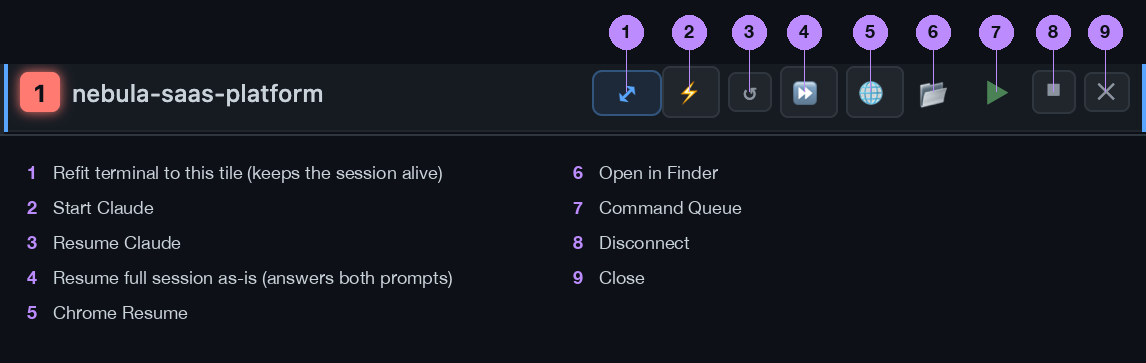
| Control | Label | What it does |
|---|---|---|
| ⤢ | Refit terminal to this tile | Resize the terminal to fit the tile again. Keeps the session alive. |
| ⚡ | Start Claude | Start the agent fresh in this project. |
| ↺ | Resume Claude | Pick a previous session from a searchable list and resume it. |
| ⏩ | Resume full session as-is | Bring the last session back exactly as it was, and answer the trust and MCP prompts on the way so you are not sat pressing Enter. |
| 🌐 | Chrome Resume | Resume with a browser attached, for work that needs one. |
| 📂 | Open in Finder | Reveal the project folder. |
| ☁ | Backup & Sync | Archive the project to your own cloud storage and pull it back. Shown when the tile is expanded. |
| 📝 | Project Notes | A scratchpad kept with the project. |
| ▶ | Command Queue | Queue commands to run one after another, and Auto Task to dispatch the next the moment the agent finishes. |
| ⏹ | Disconnect | End this tile's session. |
| ✕ | Close | Close the tile. |
Resume as-is
When an agent has quit, or the Mac has restarted, ⏩ brings the last session back in full. Deck View sends the resume command, picks the most recent session from the list, and answers the resume-in-full prompt, so the conversation is back where it was without you pressing Enter twice. It watches the screen to answer rather than firing timed keystrokes, because the third option on that prompt is “Don't ask me again” and a blind keystroke could land on it.
Click to move the caret
Click anywhere in the line you are typing and the caret goes there, instead of holding the arrow key. It stays out of the way when you are selecting text, when the click is not on the caret\'s own row, or when a program has asked for the mouse itself.
What the colours mean
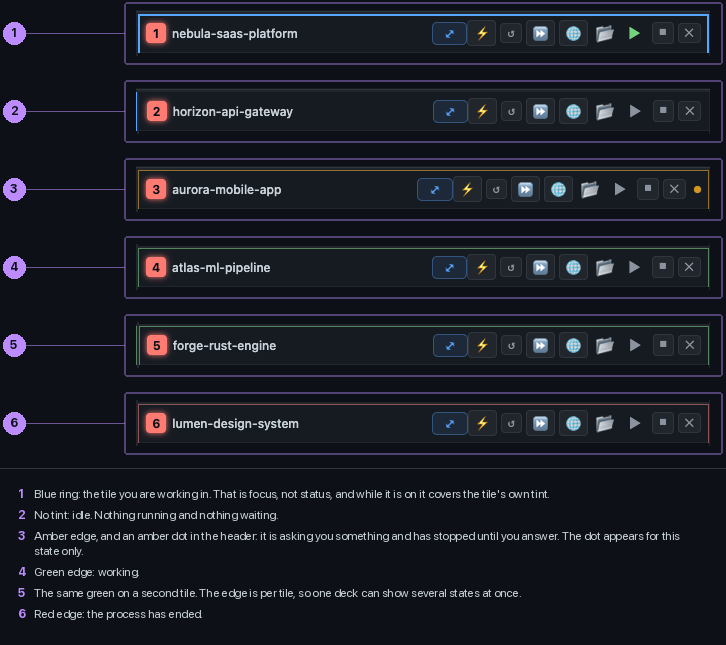
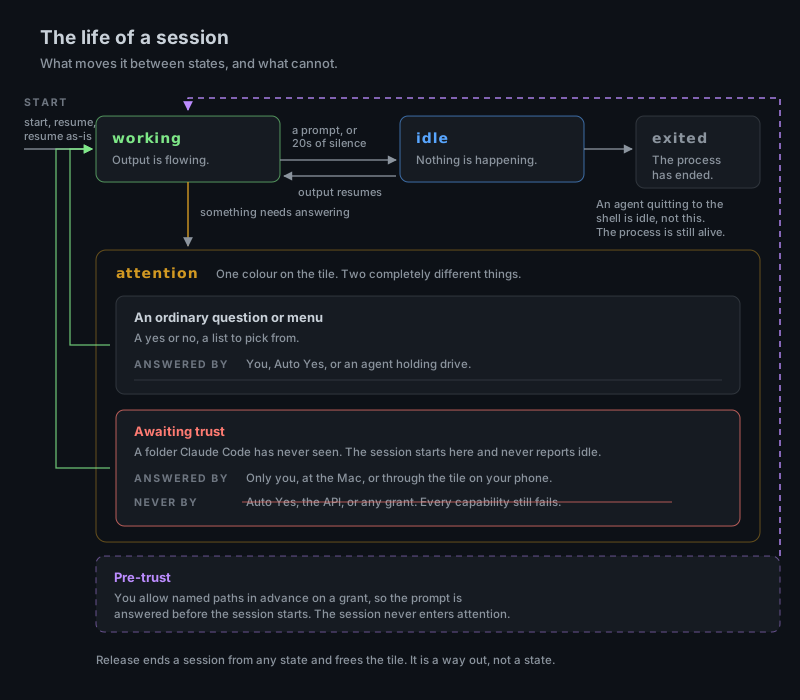
A tile shows its state as a tint on its edge, kept quiet so the blue focus ring always wins: green while output is flowing, amber when it is waiting on you (a question, a menu, or a first-run trust prompt), and only that state also gets a pulsing amber dot in the header; red when the process has ended. No tint is idle. The blue rule down both sides of a tile is focus, not a state.
Sheet tabs carry a dot for the sheet as a whole: green if a session on it is working, amber if one needs you, hollow blue if something on it finished and you have not looked yet. Turning Auto Yes on answers ordinary prompts, but never a trust prompt, so a blocked session can never look attended.
Silence is not work. If nothing has been printed for twenty seconds the tile drops to idle rather than claiming to be busy.
Sessions outlive the window
Sessions run in a background process, not in the window. Close Deck View or install an update: the agents carry on, and every tile reattaches to the session it had, scrollback included, when you reopen.
A reboot is different: the background process goes with it, so every window comes back as a fresh shell. Deck View remembers which windows actually had an agent running, as opposed to just a project loaded, and after a restart offers to bring those back with ⏩ Resume as-is, on every sheet, in one click. Windows that only had a project loaded are left as they were. Preferences, Projects, Resume running agents after a restart makes it automatic.