The toolbar
The row across the top of the window. Left to right, exactly as the app labels them.
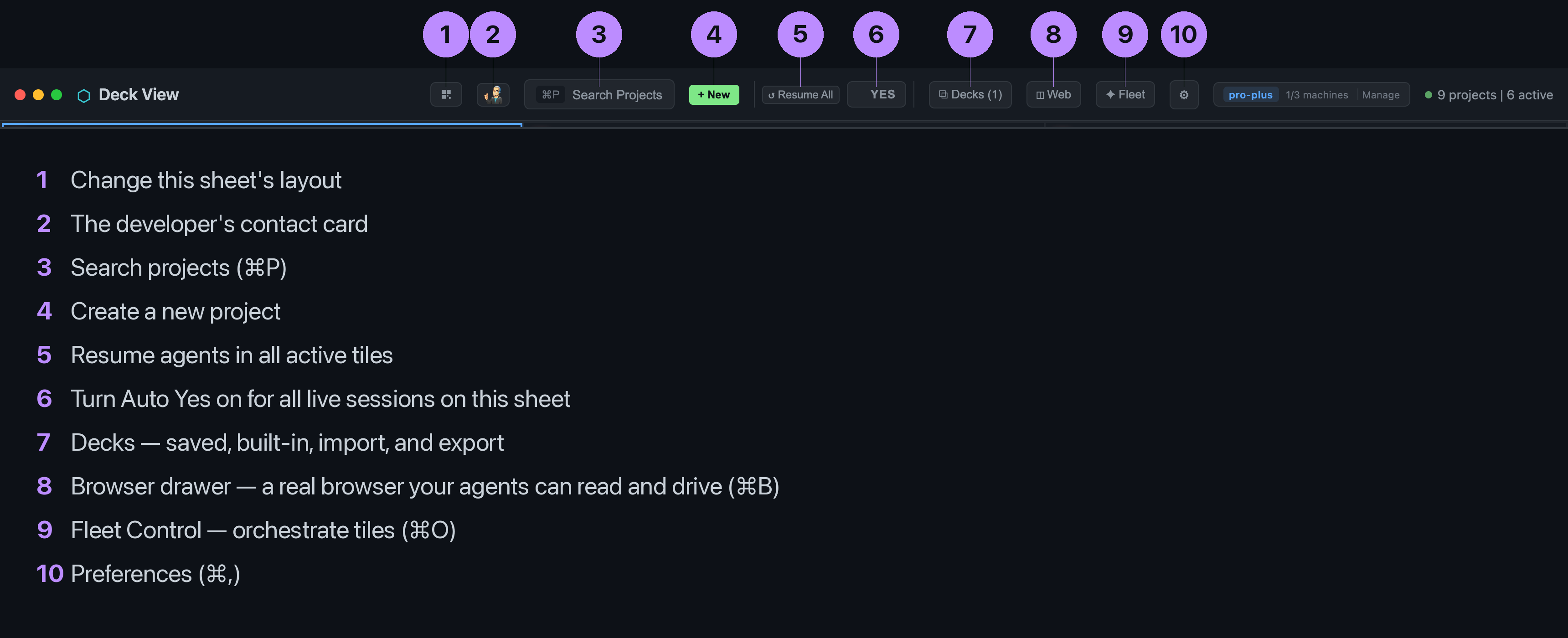
| Control | Label | What it does |
|---|---|---|
| ⌘P | Search Projects | Find a project and put it in the selected tile. Fuzzy search, arrow keys to move, Enter to load. If every tile is occupied it tells you so. |
| + | New | Create a new project folder and open it in a tile. |
| ↺ | Resume All | Resume the agent in every tile that has one. Useful after a restart. |
| ✓ | YES | Turn Auto Yes on for every live session on this sheet. It acts on what is live at that moment; a window you open later does not inherit it, you press it again. The tick reflects the real state, so a change from your phone or from an agent shows here too. |
| ⧉ | Decks | Saved layouts, built-in ones, and import and export as files. |
| ◫ | Web | The browser drawer: a real browser inside the workspace that your agents can read and drive. ⌘B. |
| ✦ | Fleet | Fleet Control: send one command to several tiles, or fill a task pool that dispatches to whichever agent goes idle next. ⌘O. Pro and Team. |
| ? | Deck View Guide | Opens this guide. It is also under Help in the menu bar, with the local API reference beside it. |
| ⚙ | Preferences | Folders, scan depth, appearance, update channel, remote access, agent access. ⌘, |
The licence pill and the count
To the right sits your tier, how many machines the licence is on, and a Manage link to your account. The green dot and count show how many projects Deck View has found and how many sessions are live right now.
The two small buttons on the left
The grid icon changes the layout of the current sheet. The avatar opens a card with a QR code for reaching the developer.